
Use an image highlighter question to ask respondents which parts of an ad, package, concept or other image stand out. Respondents mark rectangular areas, and you can ask follow-up questions about each selection.
Use one question for one intent, such as areas respondents like or find confusing. To compare different intentions on the same image, ask separate questions. Selections record deliberate answers; they are not eye-tracking or a measure of where someone looked.
How respondents answer
Respondents draw one or more rectangles over the image. They can move or resize their selections, or remove a selection before continuing. The control works in Chat and Traditional surveys; on a touch screen, turn on area selection before dragging on the image. Keyboard users can focus the image and selection controls to add and adjust rectangles.
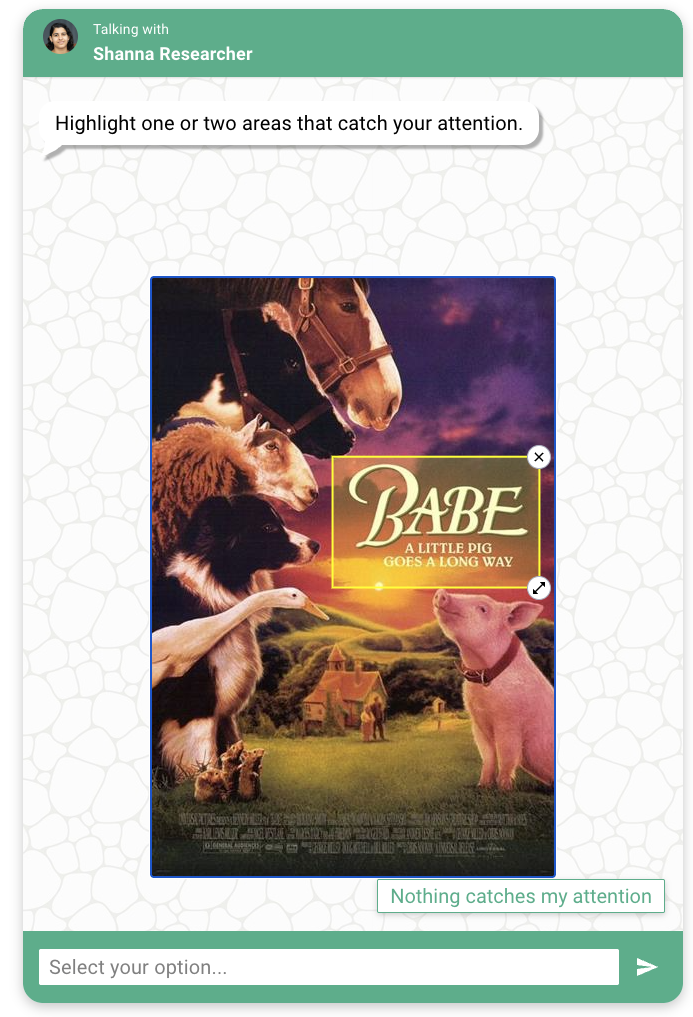
The question checks the required minimum and optional maximum number of selections. You can permit an empty answer or offer an explicit answer such as Nothing to highlight. These are different from skipping the question.
Use a clear image and a prompt explaining what to select. Test the question on the smallest screen your respondents will use, especially when the image contains small text.
Example code
Upload an image named advert.png to the survey's Media tab, then use:
from survey import Survey
s = Survey(**globals())
image = s.get_image(file_name="advert.png")
answer = s.image_highlighter_question(
"Highlight up to three areas you like.",
image=image,
color="#00AA55",
min_highlights=0,
max_highlights=3,
dont_know_option="Nothing to highlight",
id="liked_areas",
tags=s.tag(sentiment="like"),
)
min_highlights=0 allows the respondent to continue without selecting an area. Remove that setting to require at least one rectangle. dont_know_option adds a separate, explicit opt-out answer; its default is no opt-out.
Configuration
| Option | Default | Use |
|---|---|---|
question | Required | Explain which areas the respondent should highlight. |
image | Required | An uncropped image selected from the survey's Media table. |
color | #FFFF00 | A six-digit hexadecimal highlight color. |
min_highlights | 1 | Minimum rectangle count; set 0 to allow an accepted empty answer. |
max_highlights | No maximum | Optional positive maximum rectangle count. |
image_size | 600 × 600 bounding box | Optional (width, height) display bounding box. |
dont_know_option | Empty | Optional explicit opt-out label. |
number_seconds | 0 | Delay before the respondent can continue. |
id | Automatic | Optional stable question identifier. |
See the API reference for the complete signature, simulation defaults and returned response.
Ask about each selected area
Use answer.rectangles to build follow-ups showing the selected crop. Add this after the highlighter question above:
for index, selection in enumerate(answer.rectangles):
cropped = s.get_image(
file_name=image.file_name,
crop_selection=selection,
)
s.text_question(
"Why did you choose this area?",
image=cropped,
id="area_follow_up_" + str(index + 1),
tags=s.tag(selection=index + 1),
)
A crop is an independent view of the original image. It retains the source filename, metadata and security mode. The original Media item is unchanged. Use crops in ordinary question images or image options; the highlighter itself requires an uncropped image so every selection refers to the same source coordinates.
Empty answers and opt-outs have no rectangles, so this loop asks no follow-up questions for them. See Image crops for lookup and display rules.
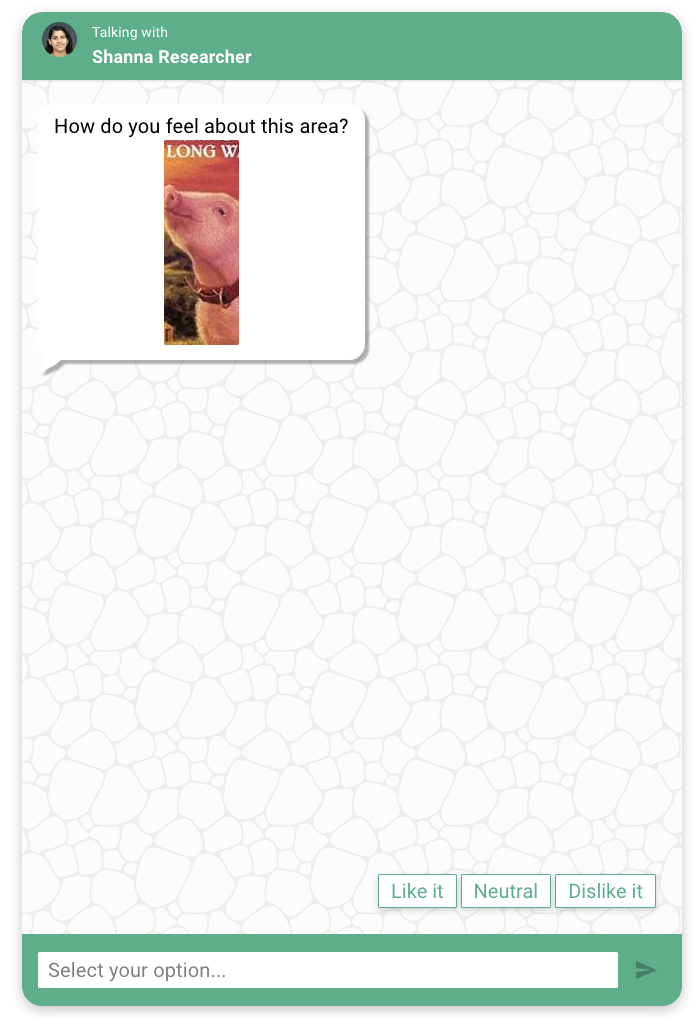
Cropped selections also work in select questions.
Responses and reporting
Each rectangle has x, y, width and height, normalized to the full source image with (0, 0) at the top left. Values must be finite, dimensions must be positive, and the rectangle must fit within the image. Resizing the displayed image does not change these source coordinates. Overlapping or repeated selections are allowed.
answer.selection_state distinguishes selected, empty and opt_out. The response also retains the original coordinate strings for raw reporting; explicit opt-outs retain their label.
Use Image highlighter analysis for heatmaps, shared AI-assisted region coding, comparisons and downloads. Raw exports retain the numeric coordinates; coded exports use the derived region labels.