
When and Why to Use
You can use this to present important information or context that doesn't require a choice. It's ideal for:
- Welcome messages or intros
- Section headers
- Disclaimers or privacy statements
- Transition points in a survey flow
By default respondents must acknowledge the message with an "OK"/"Continue" tap before proceeding. Set require_response=False to show the message without requiring acknowledgement.
Other Names and Formats
Show Message is a descriptive text, display text, or instruction text element. Similar content is called text/graphic content or Text / Graphic in other survey tools. Use it for a welcome message, introduction, or section instructions, with acknowledgement controlled by require_response.
Chat Experience
- Text is centered with default padding and margin.
- If an image is supplied, it appears above the text.
- An OK button appears fixed at the bottom if
require_response=True. - If
require_response=False, the user can scroll past without interaction.
| With an image | Without an image |
|---|---|
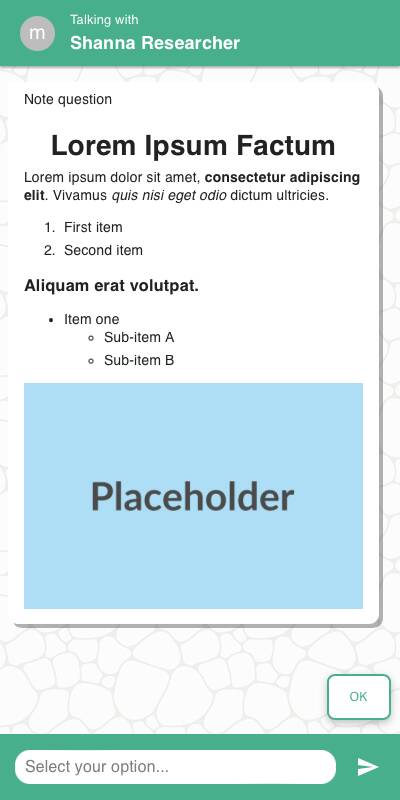 | 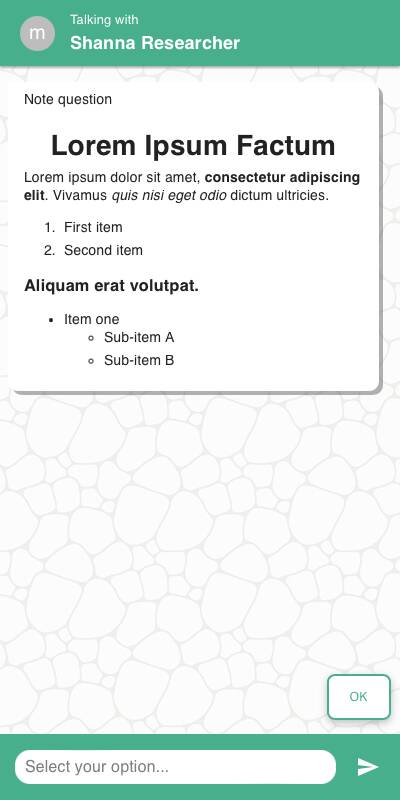 |
Traditional Experience
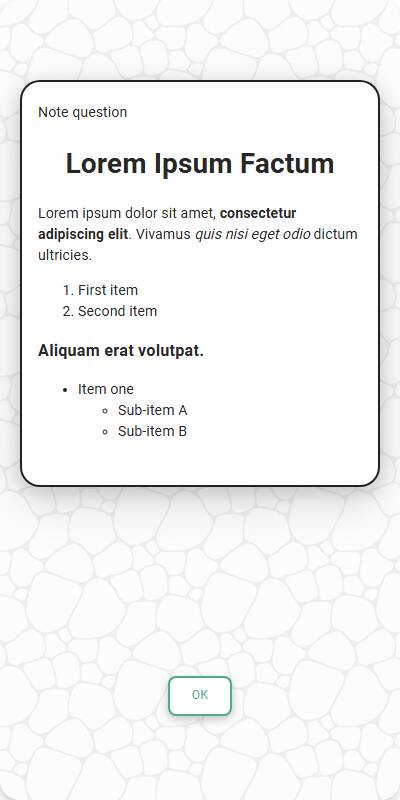
- Similar layout, but more horizontal space used for text.
- Image (if present) appears inline to the left of the copy if there's enough screen width.
| With an image | Without an image | Mobile Optimized |
|---|---|---|
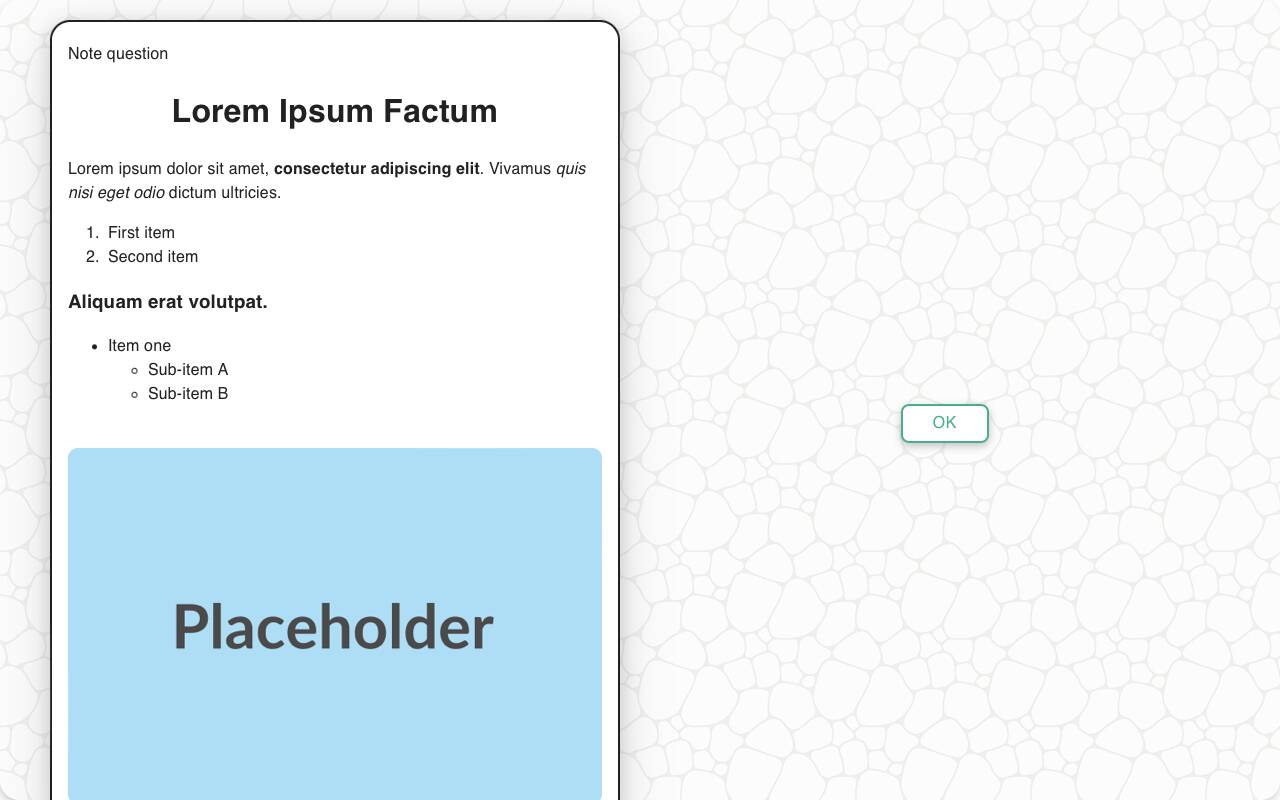 | 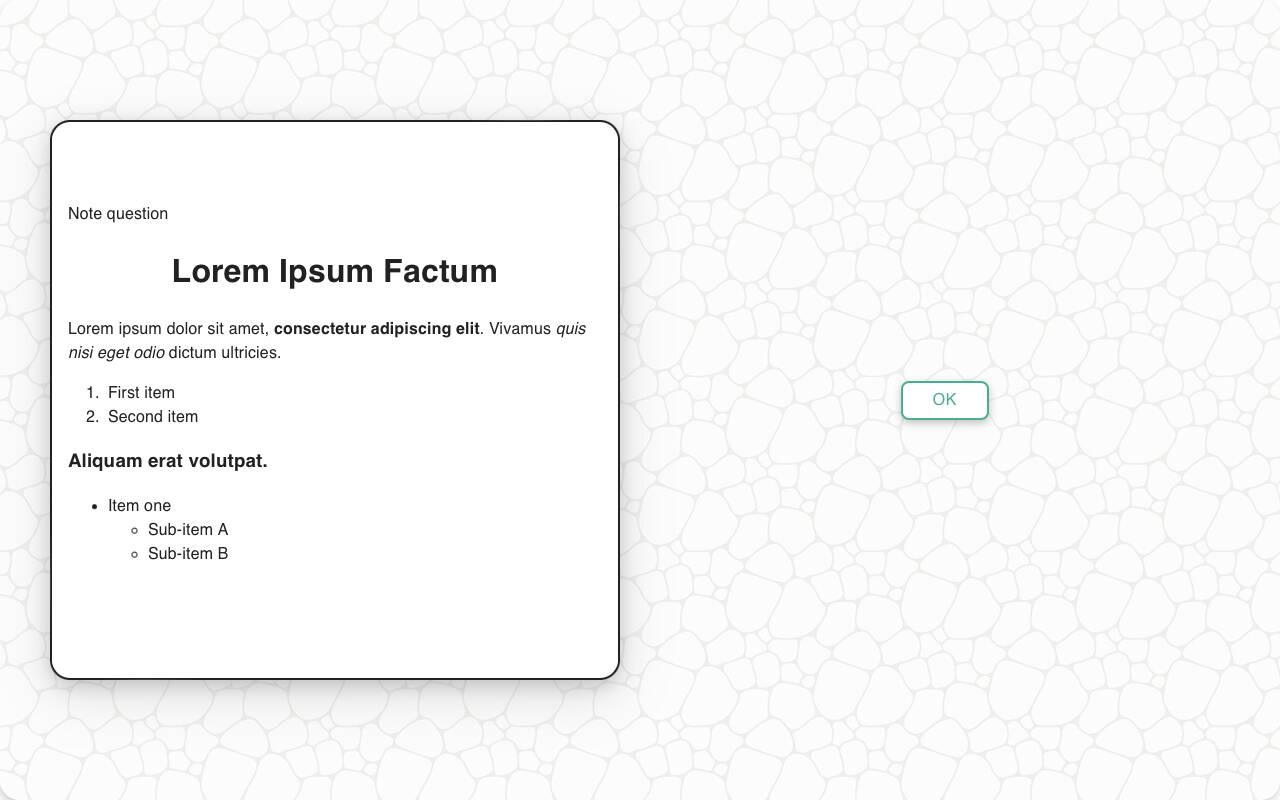 |  |
Configuration Options
| Option | Type | Required | Default | Description |
|---|---|---|---|---|
message | str | yes | - | The message to present to the user |
image | MediaItem | no | - | Optional image from the s.media collection |
require_response | bool | no | True | Whether the user must acknowledge the message |
number_seconds | int | no | 0 | Seconds to wait before allowing the respondent to continue |
tags | s.tag() | no | - | Used to fill in {} tokens in the message or attach reporting tags |
id | str | no | - | Optional stable identifier for this question |
Example Code
s.show_message(
"Welcome to our market research survey! Your feedback is important to us "
"as it helps us understand market trends and consumer behavior. "
"Thank you for taking the time to participate!"
)
Or with a dynamic tag and image:
s.show_message(
"We are now going to show you an ad for {brand} cars.",
tags=s.tag(brand="Ford"),
image=s.media.intro_slide,
)