

Article
Creating a Pixel Exposure Source
A pixel exposure source gives you a hosted URL endpoint that captures ad-exposure events in real time. Each time the pixel fires — typically from an ad server or tag manager — MX8 Labs records the exposure and makes it available for respondent matching.
Before you begin
Decide on the following before opening the creation dialog:
- A source name for this pixel (this cannot be changed after creation).
- A subdomain that will form part of the pixel URL.
- A retention period (in days) — how long exposure records should be kept for matching.
- Any dimensions you want to capture alongside each exposure (for example,
brand).
Step 1 — Open the creation dialog
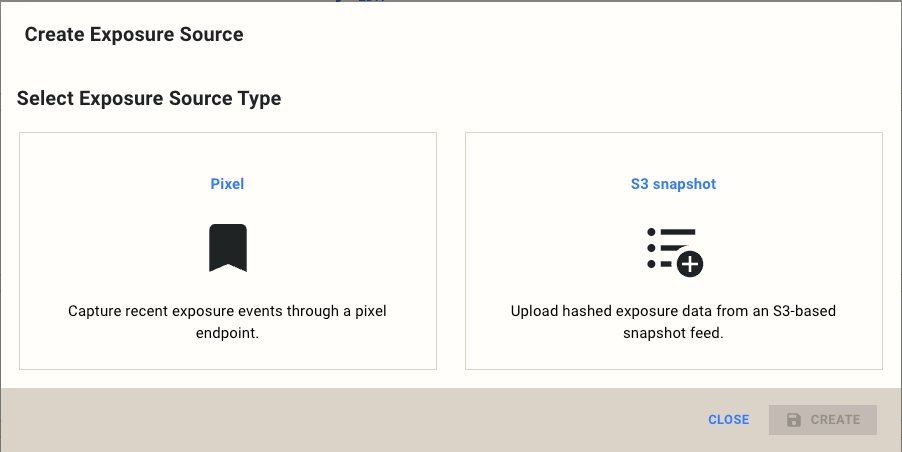
Navigate to your exposure sources and click Create Exposure Source. You'll see two cards: ** Pixel and ** S3 snapshot. Select ** Pixel**.
Step 2 — Configure the source
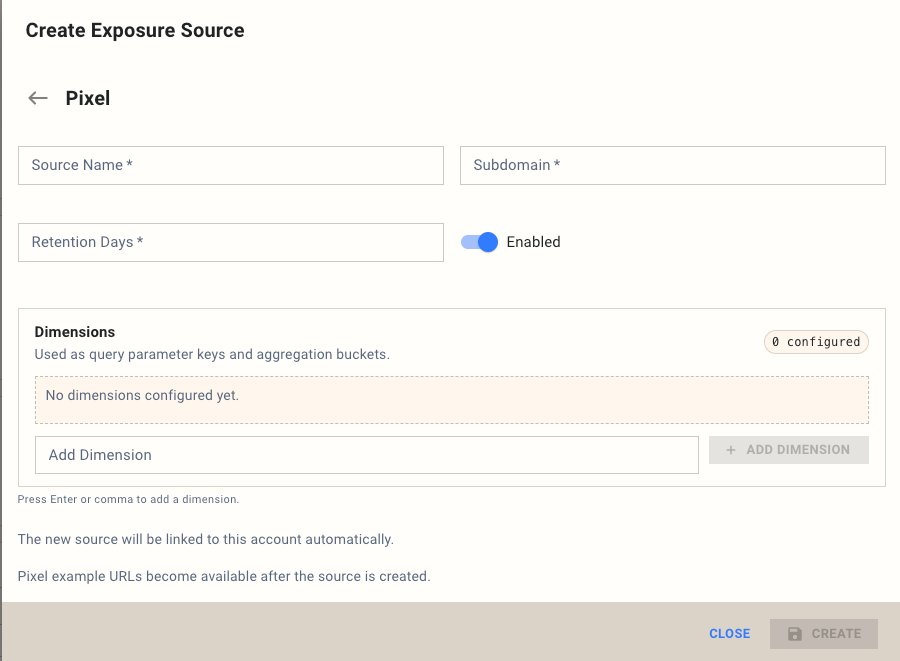
Fill in the required fields:
- Source Name — A descriptive label (e.g.,
test-ip4). This is permanent, so choose something meaningful. - Subdomain — This becomes part of your pixel URL. For example, entering
ip4produces a URL on theip4-pixelsubdomain. - Retention Days — The number of days MX8 Labs will retain exposure records. The default is 7.
- Enabled — The toggle is on by default. Turn it off if you want to configure the source without activating it yet.
Step 3 — Add dimensions
Dimensions are optional attributes attached to each exposure event. They serve as query-parameter keys in the pixel URL and as aggregation buckets in reporting.
To add a dimension, type its name into the Add Dimension ** field and press Enter or click+ Add Dimension**. For example, adding brand means your pixel URL will include a brand parameter.
You can add multiple dimensions. Each one will appear as a tag that you can remove by clicking the × next to it.
Step 4 — Create and copy your pixel URL
Click Create. After the source is saved, the detail view displays a ** Pixel Example URL** showing the full endpoint with your dimensions as query parameters:
https://{subdomain}-pixel.dev.mx8.io/?brand={brand}&uid={uid}
Copy this URL and replace the placeholder values with your actual macro variables when deploying it in your ad server or tag manager. For example, your ad platform might use macros like %%BRAND%% and %%USER_ID%% in place of {brand} and {uid}.
Tip: If you see literal
{uid}or{brand}values appearing in your Recent Exposures data, it means the macro substitution in your ad server isn't working correctly. Double-check that your platform is replacing the placeholders before the pixel fires.
What's next
Once your pixel is live, you can verify that data is arriving correctly using the Recent Exposures panel. See Verifying Exposure Data (Recent Exposures) for details.