

Article
Show Message
When and Why to Use
You can use this to present important information or context that doesn't require a choice. It's ideal for:
- Welcome messages or intros
- Section headers
- Disclaimers or privacy statements
- Transition points in a survey flow
Set require_response=True if you want to force an "OK"/"Continue" tap to proceed.
Chat Experience
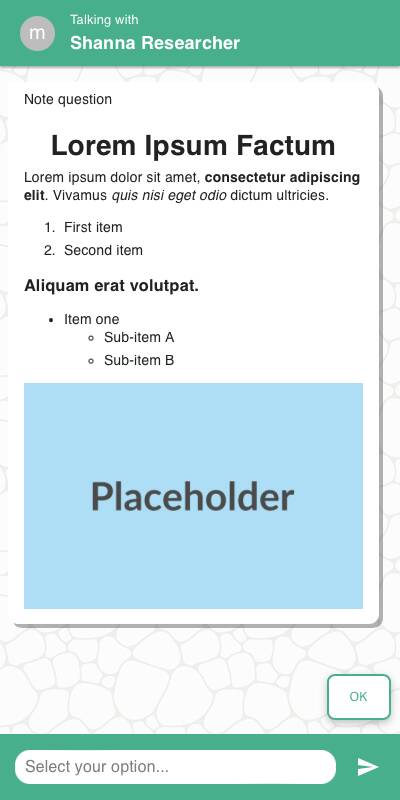
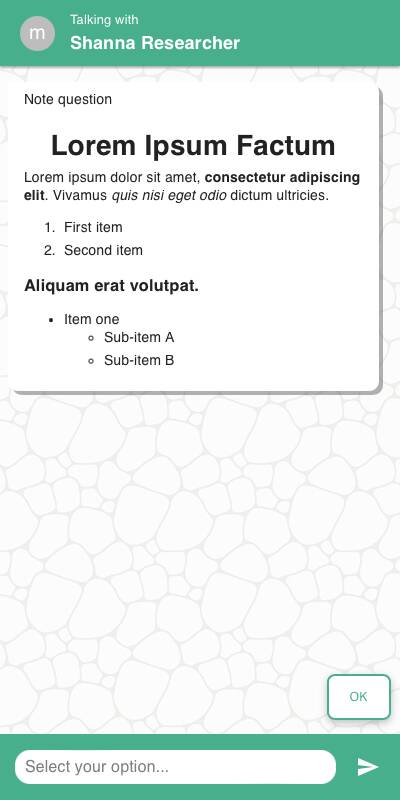
- Text is centered with default padding and margin.
- If an image is supplied, it appears above the text.
- An OK button appears fixed at the bottom if
require_response=True. - If
require_response=False, the user can scroll past without interaction.
| With an image | Without an image |
|---|---|
 |  |
Traditional Experience
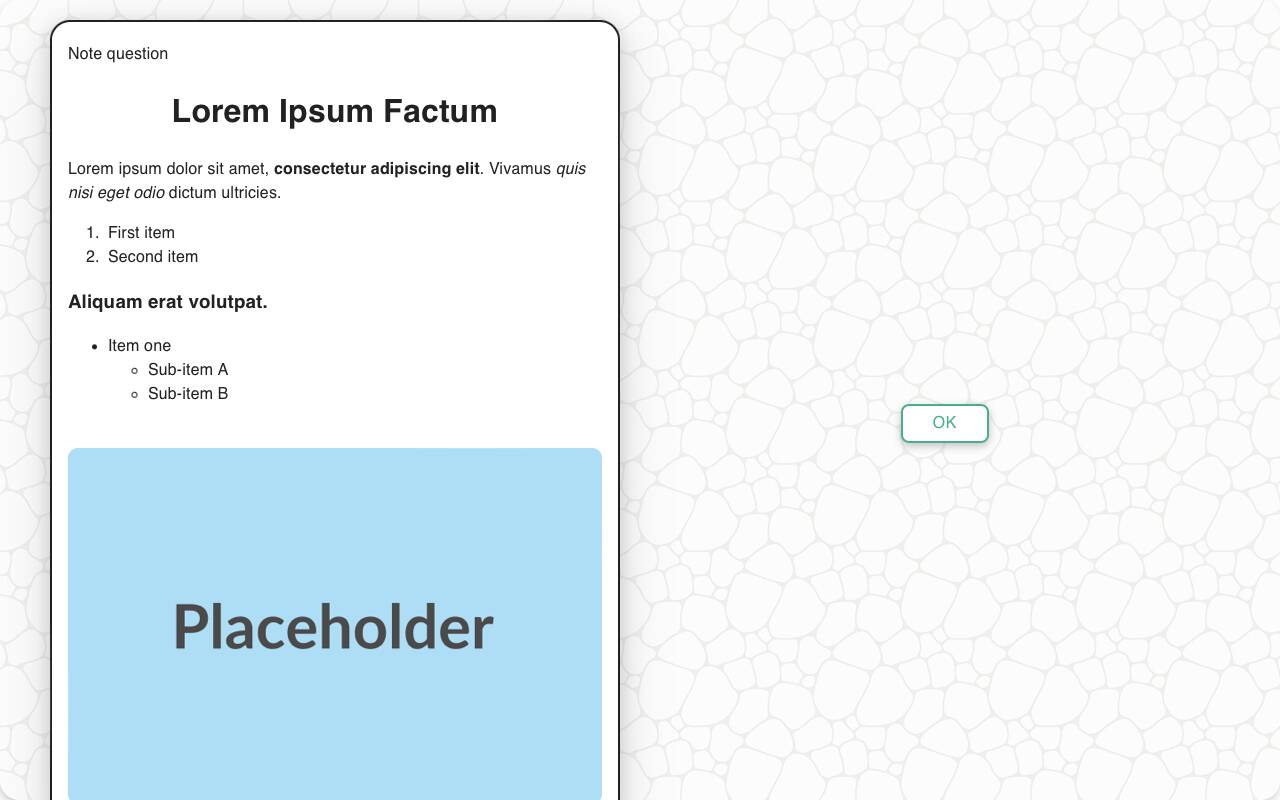
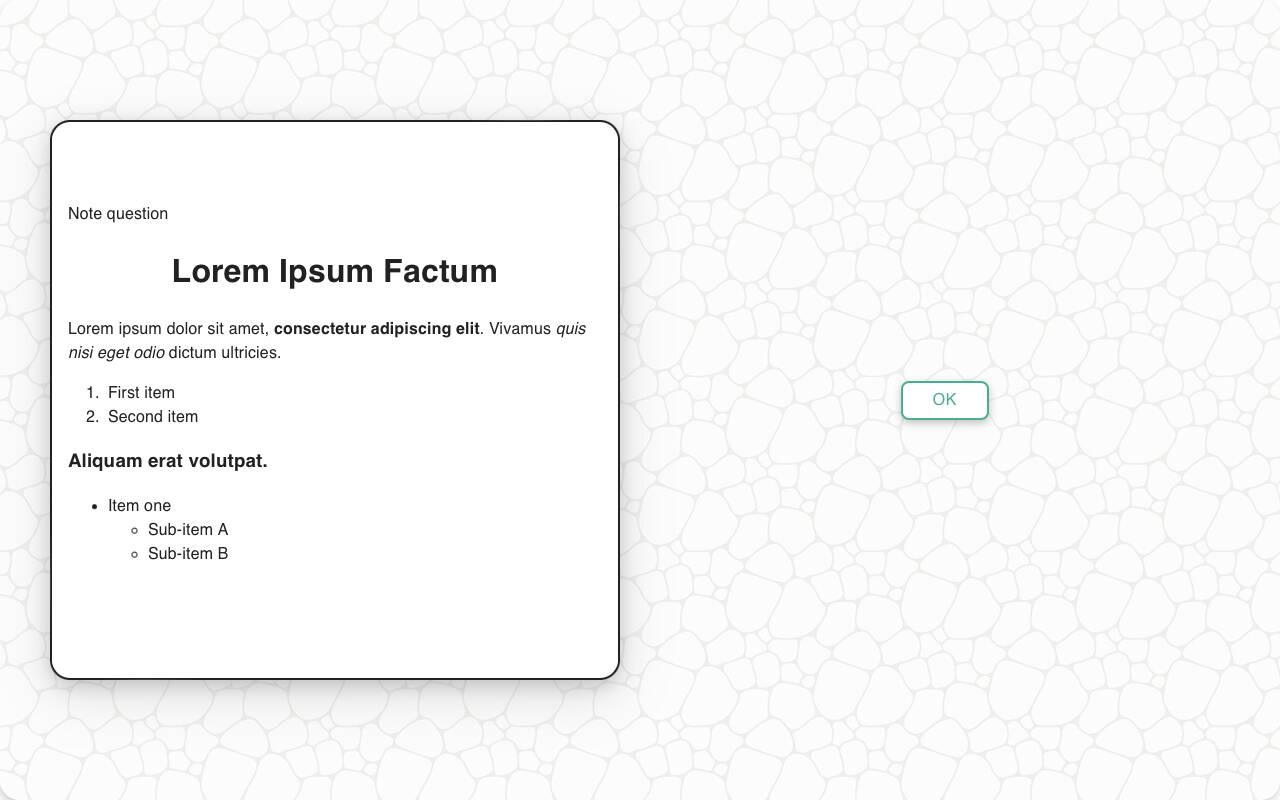
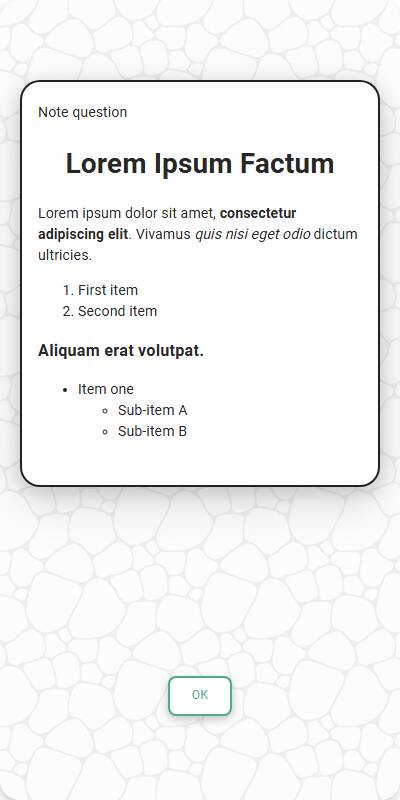
- Similar layout, but more horizontal space used for text.
- Image (if present) appears inline to the left of the copy if there's enough screen width.
| With an image | Without an image | Mobile Optimized |
|---|---|---|
 |  |  |
Configuration Options
| Option | Type | Required | Default | Description |
|---|---|---|---|---|
| message | string | yes | - | The message to present to the user |
require_response | boolean | no | True | Whether the user must tap to continue |
image | MediaItem | no | - | Optional image from the s.media collection |
tags | s.tag() | no | - | Used to fill in {} tokens in the copy string |
Example Code
s.show_message( "Welcome to our market research survey! Your feedback is important to us " "as it helps us understand market trends and consumer behavior. " "Thank you for taking the time to participate!", require_response=True )
Or with a dynamic tag and image:
s.show_message( "We are now going to show you an ad for {brand} cars.", brand="Ford", image=s.media.intro_slide )