

Article
Using the Visual Survey Editor
The MX8 Labs survey editor supports two editing modes: a Code view for writing survey logic in Python, and a Visual view that presents your survey as a structured, readable outline. Both modes are fully interchangeable. Every feature available in code is also available in the visual editor, and changes made in one mode are immediately reflected in the other.
Switching Between Code and Visual
You can toggle between the two modes at any time using the Code and Visual buttons in the top-left corner of the editor toolbar:

Your survey is saved automatically, so you won't lose any work when switching between modes. This makes it easy to draft a survey visually and then drop into code mode for fine-tuning, or vice versa.
What the Visual Editor Shows
The visual editor renders your survey as a step-by-step outline. Each element in your survey (questions, logic blocks, comments, and custom Python) is displayed as a distinct card:
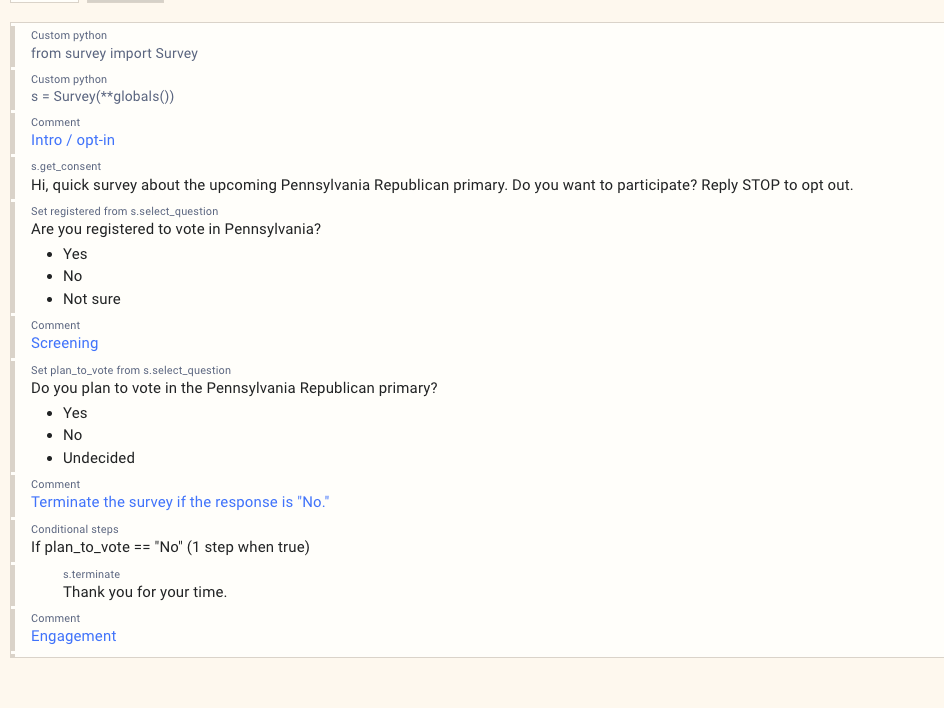
At a glance you can see:
- Questions with their full text and answer options
- Comments (section labels like "Screening" or "Engagement") highlighted in blue
- Conditional logic with clear descriptions of the branching rules and the steps nested inside them
- Custom Python blocks for any advanced logic or API calls
- Consent prompts, terminations, and other survey functions displayed inline with descriptive labels
Editing a Step
Click on any step in the visual outline to open the step editor. This panel lets you modify the step's parameters: question text, answer options, variable names, and additional settings. You can do this without writing any code:
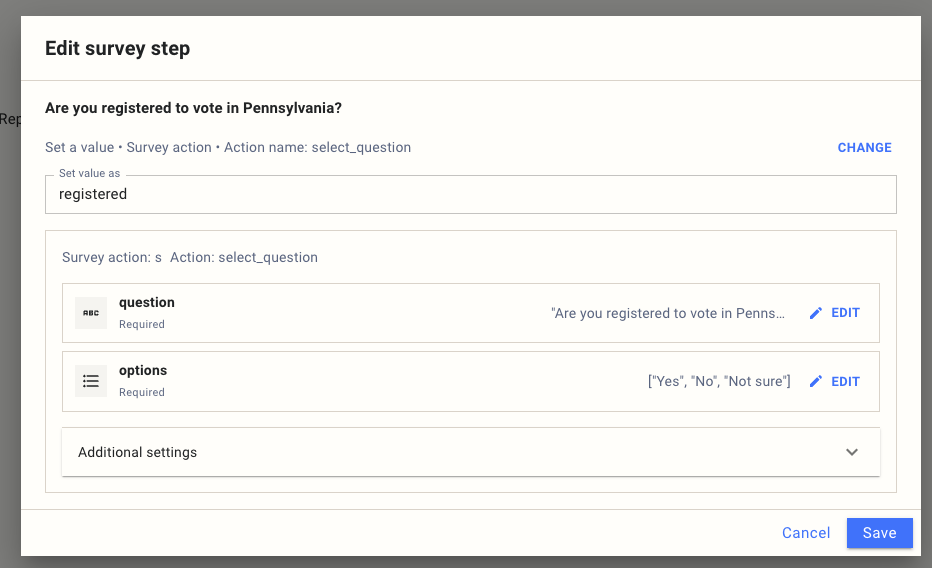
Each step shows its action type (e.g. select_question), required and optional fields, and a collapsible "Additional settings" section for less common parameters. Hit Save to apply your changes or Cancel to discard them.
Full Feature Parity with Code
Everything you can do in the code editor is supported in the visual editor. This includes question types (select, multiselect, numeric, open-end, grid, ranking, and more), skip logic and branching, quotas, calculated variables, API calls, media functions, and terminations. If the platform supports it, the visual editor can handle it. There is no need to switch to code mode to access advanced functionality.
When to Use Each Mode
The visual editor is ideal for reviewing survey flow, catching logic errors at a glance, and collaborating with team members who may not be comfortable reading Python. Code mode gives you direct access to the underlying script, which can be faster for bulk edits, copy-pasting between surveys, or using the AI Copilot. Most users find themselves switching between the two depending on the task at hand.