

Article
Fixing survey problems
When you save a survey in MX8 Labs, the system performs multiple automated checks. These include validating the Python code, running simulated responses, verifying question logic, updating reports, and processing any translations or weighting.
If any stage fails, you’ll see a descriptive error message. This guide explains the main error types and how to fix them.
1. Programming Errors
What They Are
Programming errors occur when there’s a mistake in the Python code that powers your survey logic.
This might include syntax issues, undefined variables, or invalid function calls.
How They’re Reported
MX8 Labs will display a message as follows in the survey screen:
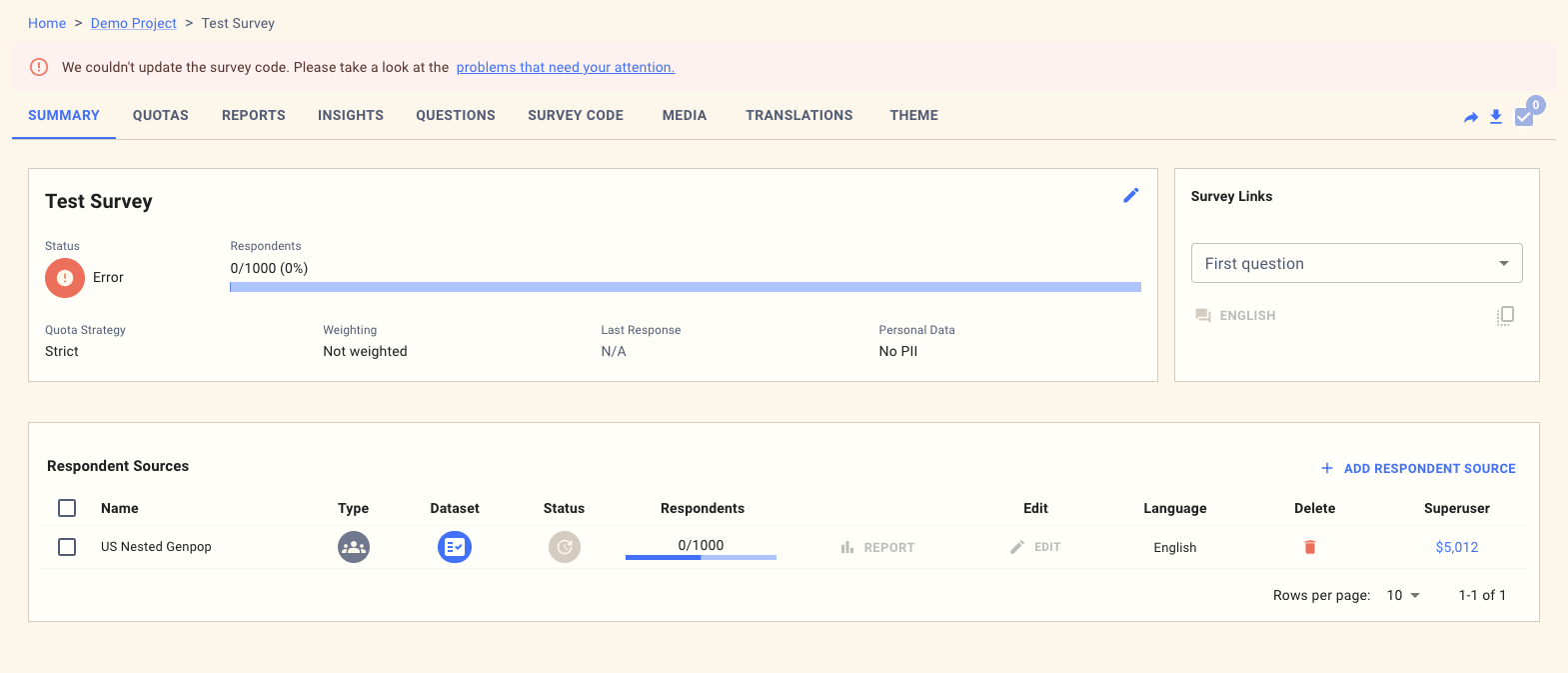
Clicking on the link will take you to the survey page, where the error is highlighted.
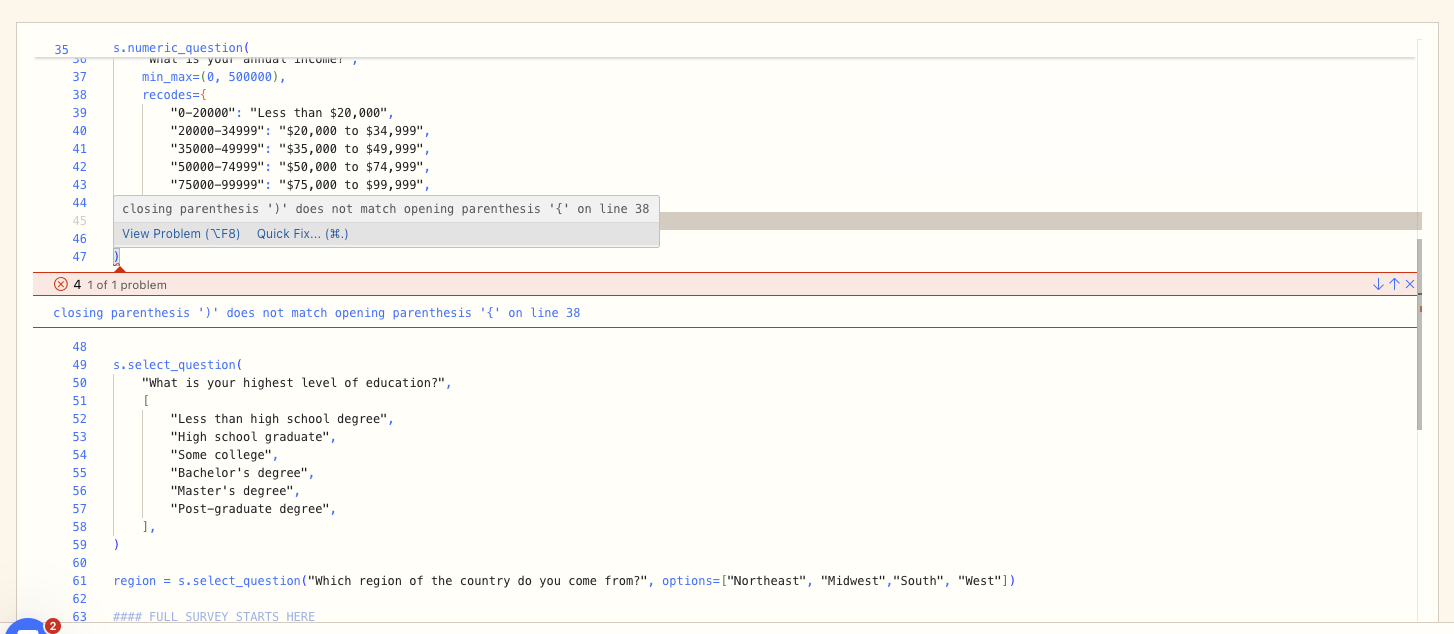
THe
You can navigate to other problems in the survey by using the arrows in the error box.
How to Fix Them
- Read the error message carefully. The last line usually identifies the specific cause.
- Open the relevant section of your survey logic and correct the code.
- If you’re unsure, use Copilot within the platform to generate or suggest a fix automatically.
- Re-run the save process after making changes.
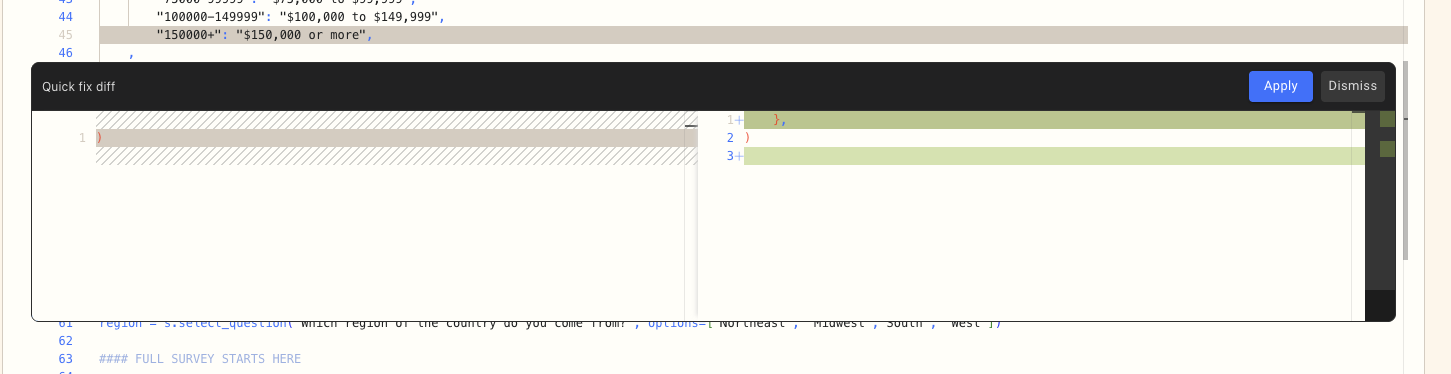
You can also use Copilot to fix the bug by select "Quick fix" when you hover over the error in the code:
It will then present the proposed change to you, and you can click "Apply" to accept it.
2. Questions Not Run in Simulated Responses
What They Are
During simulation, MX8 Labs runs through your survey logic as if respondents were completing it.
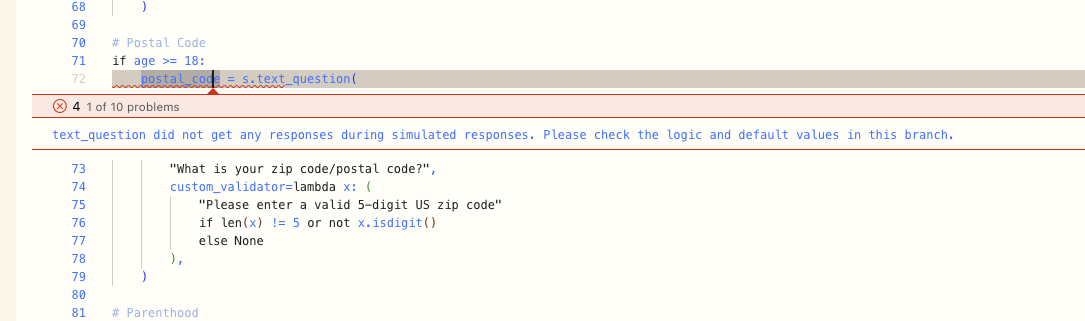
Sometimes, questions are skipped entirely because they’re unreachable due to logic errors or over-restrictive qualification rules.
They are reported like this:
Common Causes
- A logic path excludes certain branches or conditions.
- Qualification criteria depend on random responses that don’t match any route.
- A required variable is missing or misnamed in the routing.
How to Fix Them
- Review the survey logic and confirm that all questions are reachable from at least one simulation path.
- During simulation, select question responses are random. If your logic only qualifies respondents with a specific answer, add a ** default value** for that question. This ensures consistent testing paths.
- Re-run the simulation to confirm that all questions now appear in the response logs.
3. Batch Errors
What They Are
When you click Save, MX8 Labs runs a background “batch” process. This process:
- Checks your survey syntax
- Runs a full simulated response set
- Validates question and routing consistency
- Updates reports and metrics
- Applies translations and weights (if enabled)
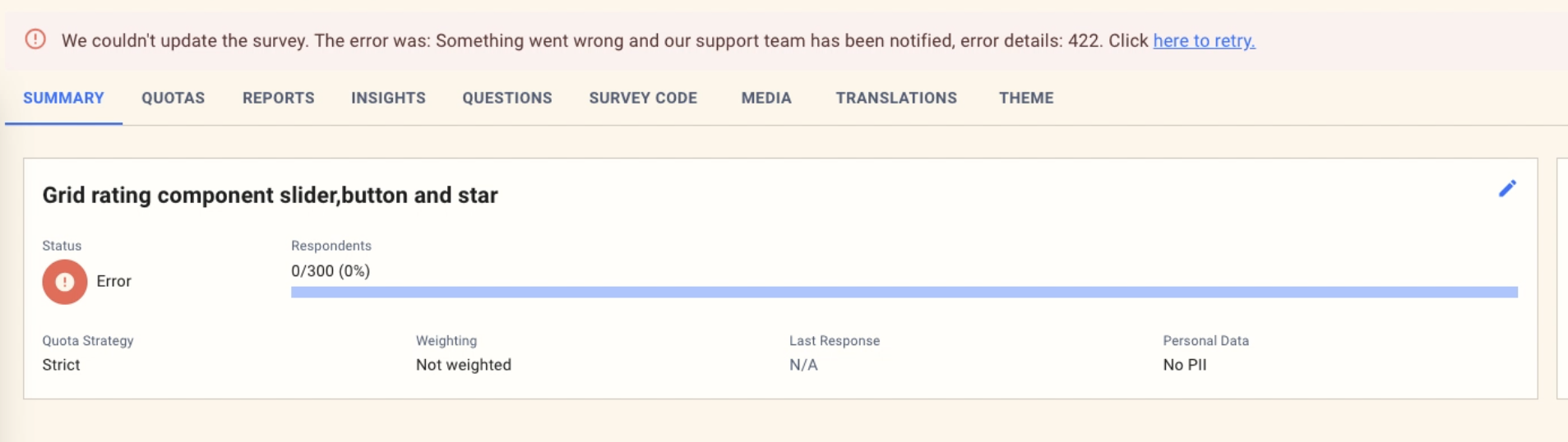
If any part of this sequence fails, a batch error is displayed.
How to Fix Them
- Read the descriptive error message. It usually points to the exact step that failed.
- Fix the underlying issue (for example, a missing variable in translation, a logic break, or invalid syntax).
- Re-save the survey.
Timeout Errors
Occasionally, a batch process may take longer than expected and time out.
In this case:
- You’ll see a timeout error message.
- Simply press Retry to run the save again.
- If timeouts happen repeatedly, contact the MX8 Labs support team with the survey ID and timestamp.
4. Weighting Errors
What They Are
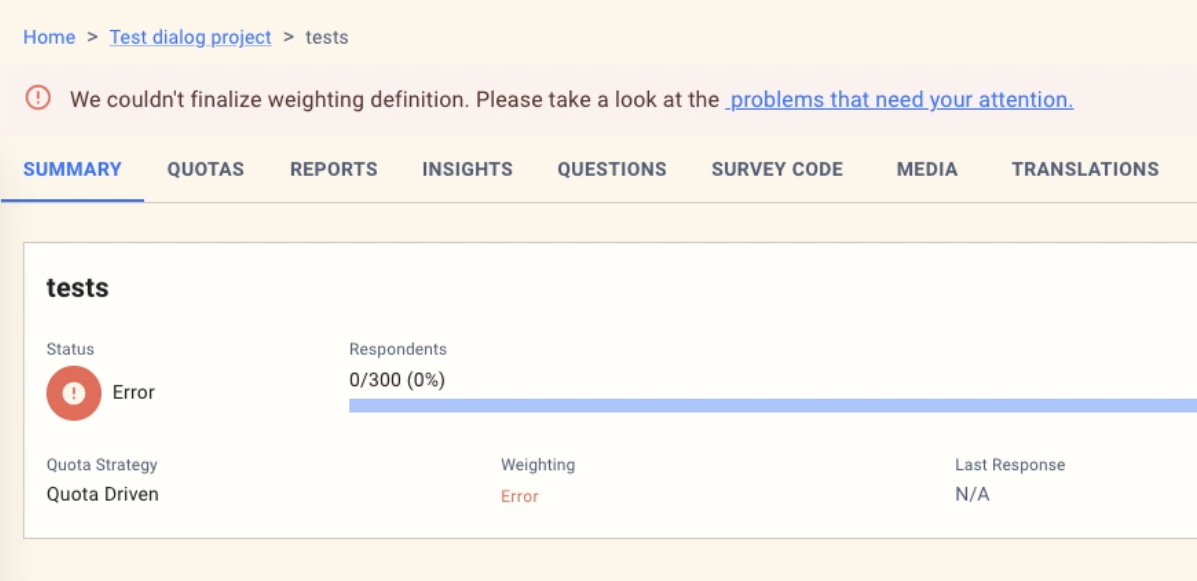
Weighting is applied to balance responses based on defined demographic or variable criteria.
If the weighting configuration refers to variables that don’t exist or no longer match your question structure, a weighting error appears.
Common Causes
- The question linked to a weighting variable has been renamed or deleted.
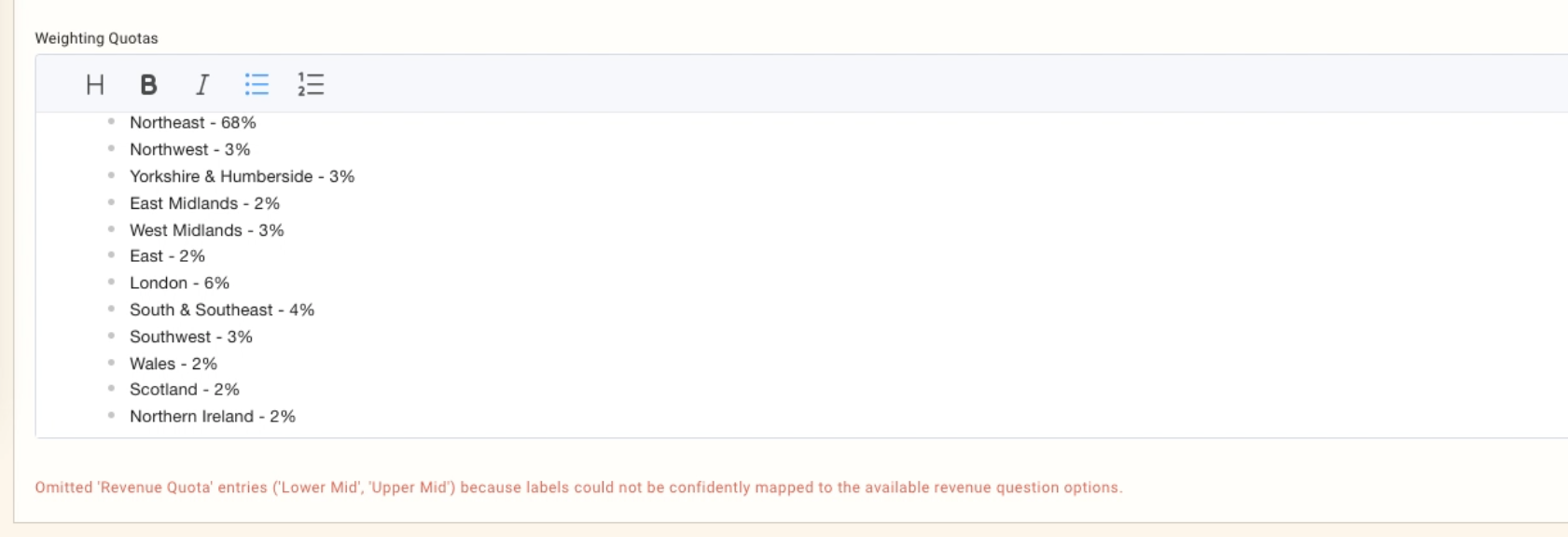
- The weighting schema uses values or labels that no longer exist in the survey.
- A mismatch between categorical definitions and numeric targets.
How to Fix Them
- Open the Weighting section of your survey configuration.
- Review each variable and ensure it corresponds to an active question or field.
- Adjust the definition or remove outdated variables.
- If you don’t need weighting, disable it to prevent further errors.
Summary
Most survey errors are resolved by:
- Reading the error description carefully
- Checking the related section (code, logic, or weighting) and updating as needed - either manually or using one of MX8 Labs' AI-assisted tools.
- Hitting Save after correction
If errors persist, capture the full error message and contact MX8 Labs Support. Providing the survey ID and a brief summary of what triggered the issue helps speed up resolution.